
Start exam preparation
Exam Prep helps you prepare for a specific exam, such as the SAT, ACT, or IELTS. Open Exam Prep from student navigation. Enroll in an exam, then choose how you want to study: learn a topic, practise questions, or take a timed test. Which exams you can use depends on your account and on whether the exam’s question bank is ready.
The Exam Prep home
Section titled “The Exam Prep home”The home page focuses on one exam at a time.
- Focus exam: the exam you pinned. If you haven’t pinned one, it’s the exam with the nearest test date, and otherwise the one you used most recently. Use Change focus to pin a different exam.
- Focus exam card: shows your predicted score range, your target and the days left until your test, and this week’s focus. It has one main button: resume an unfinished attempt, or else continue your learning path.
- This week’s plan: a short strip of upcoming tasks. Open the Study Planner to see and change them.
- Other exams: every other exam you’re enrolled in, each with its status and one action.
The predicted score is shown as a range because it stays rough until you have completed enough practice.
Enroll in an exam
Section titled “Enroll in an exam”- Browse the available exams and check each exam’s question bank status.
- Open the exam and choose Enroll in this test.
- Enter your target score and test date, then save. They set your countdown, weekly plan, and progress targets.
Exam home tabs
Section titled “Exam home tabs”Each exam has its own home with these tabs. The current tab is saved in the address, so you can bookmark it.
| Tab | What it is for |
|---|---|
| Overview | Predicted score, target, and trend (the trend needs at least two scored mocks). Also a diagnostic, a daily drill, your learning path, this week’s plan, and coloured mastery chips for each skill (green, amber, red, or new). |
| Practice | One card per section with its time and question count, plus Custom practice. |
| Mocks | Start a full or starter mock and see your recent attempts. |
| Progress | Score trend chart, confidence range, test date, and attempt counts. |
| Mistakes | Your missed questions grouped by error type, with Retry my mistakes and Make flashcards. See targeted practice. |
| My materials | Your own notes and files for this exam, used by the AI Coach. See My materials. |
IELTS exam homes add Library and IELTS setup tabs. See IELTS.
Choose Learn, Practice, or Test
Section titled “Choose Learn, Practice, or Test”Start mock and Custom practice open the launcher. It slides in from the side on larger screens and from the bottom on phones. Choose:
- Mode:
- Learn: gives feedback and explanations as you go.
- Practice: checks each answer and awards XP.
- Test: works like the real exam, with no feedback and a locked coach until you submit.
- Length: a quick drill, one section, or a full mock.
- Section, Focus (for example, only my mistakes), and Difficulty. Test mode turns off Focus and Difficulty and uses the real exam mix.
If no questions match your choices, the launcher tells you. Widen the filters and try again. Continue with the practice session.
Watch the walkthrough
Section titled “Watch the walkthrough”Read the walkthrough transcript
1. Choose an exam with a ready bank
Let's start exam preparation with a clear goal. Browse the available exams and check bank readiness. We're choosing ACT, then opening its details. A ready bank gives us questions we can practice now.
2. Set your target and date
Choose Enroll in this test, then set your target score and exam date. We're using example targets for this walkthrough. Save enrollment and check that the goal appears on your exam overview.
3. Start focused section practice
Open Practice and choose a section. Here, we're practicing Math. Check the exam profile, practice mode, and section focus before you start. Section practice lets you work on one area at a time.
4. Answer and explain your thinking
Read the question and solve it before checking. Three x plus seven equals twenty-two, so subtract seven, then divide by three. Select five, add your reasoning, and choose Check answer.
5. Use feedback before moving on
Now read the explanation and check the working. Once the method makes sense, move to the next question. We've checked one answer in this tutorial; complete your own practice run before treating its summary as a result.
Download video · Captions · Transcript
This walkthrough was recorded before the latest Exam Prep update, so some screens look different. Enrolling and checking an answer still work the same way.
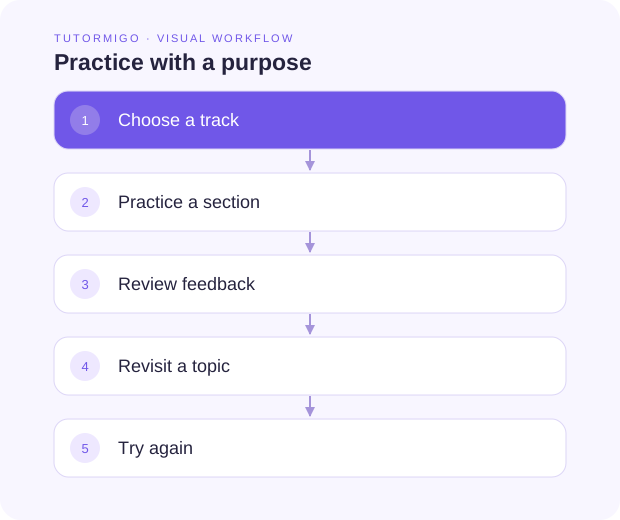
Practice estimates are a guide, not an official score.
Next: the practice session, AI Coach, or Study Planner.