
Support a learner as a parent
The parent workspace helps you review a linked learner’s activity and manage the available controls. You need a parent account linked to that learner.
Start with the selected child
Section titled “Start with the selected child”- Open the parent workspace and select the child you want to support.
- Review their activity and report areas.
- Choose one topic to discuss together.
- Open the child’s controls to review the available preferences.
- Check the selected child before saving a change.
Review learning together
Section titled “Review learning together”Ask the learner to show one example of their work and explain what they tried. Use the report as a conversation starter rather than judging progress by time or XP alone.
Child-specific pages include activity, reports, controls, and exam preparation where available. Session Recaps is managed for the selected child. Co-learning is available where the account and session support it.
Missing a learner
Section titled “Missing a learner”Signing in does not automatically create a family link. Use Link a child, and confirm that you used the intended parent account.
Next: Family linking.
Continue with a complete task guide
Section titled “Continue with a complete task guide”- Manage child controls and review consent
- Read alerts and message the linked teacher
- Plan home learning with Family Copilot
- Read activity, reports, and future-readiness evidence
- Join a child session in Co-Learning Mode
Start with a linked child
Section titled “Start with a linked child”Changing the workspace to Parent does not automatically link a student. No linked children yet is a valid empty state. Use Add / Link Child with the permitted family account, then confirm the child’s identity before opening progress, controls, or home learning. Only linked children appear in these screens.
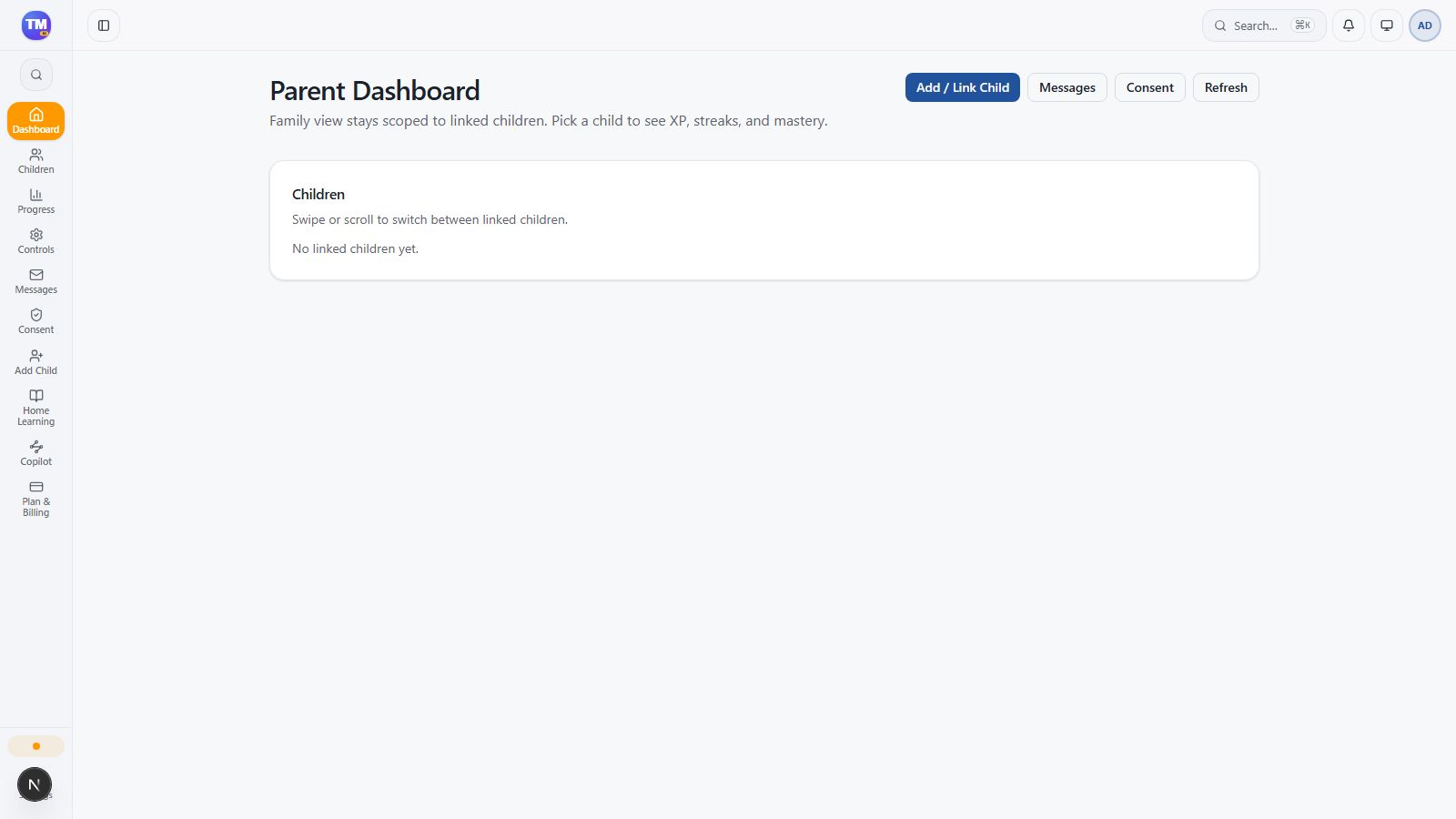
Parent Dashboard before a child has been linked.