
Create a class and review its roster
The teacher Classes page organizes class rosters, knowledge, and analytics. You need a teacher account and room within the account’s class allowance.
Set up a class
Section titled “Set up a class”- Open Classes in the teacher workspace.
- Use the class creation control and enter the class name and requested details.
- Check the grade level and submit the form.
- Open the class to review its roster.
- Use the offered invitation or managed-student controls to add the intended learners.
Check access and limits
Section titled “Check access and limits”The Classes page shows allowance information when available. If creation is disabled, check the displayed class limit before retrying. Learner and class allowances are managed by account entitlements.
Review invitations and roster entries carefully so learners join the intended class. Keep classroom codes within the class. Open the class’s knowledge and analytics areas as needed for teaching.
Next: Teacher overview.
When the account check blocks creation
Section titled “When the account check blocks creation”If the page says We could not verify this teacher account’s current limits, so no change was made, the class was not created. Close the form, refresh once, and contact support to check your teacher account and class allowance if it persists.
The local recording account could open and fill the form, but this check blocked its submission. The screenshot below illustrates the form and error; it is not evidence of a saved class.
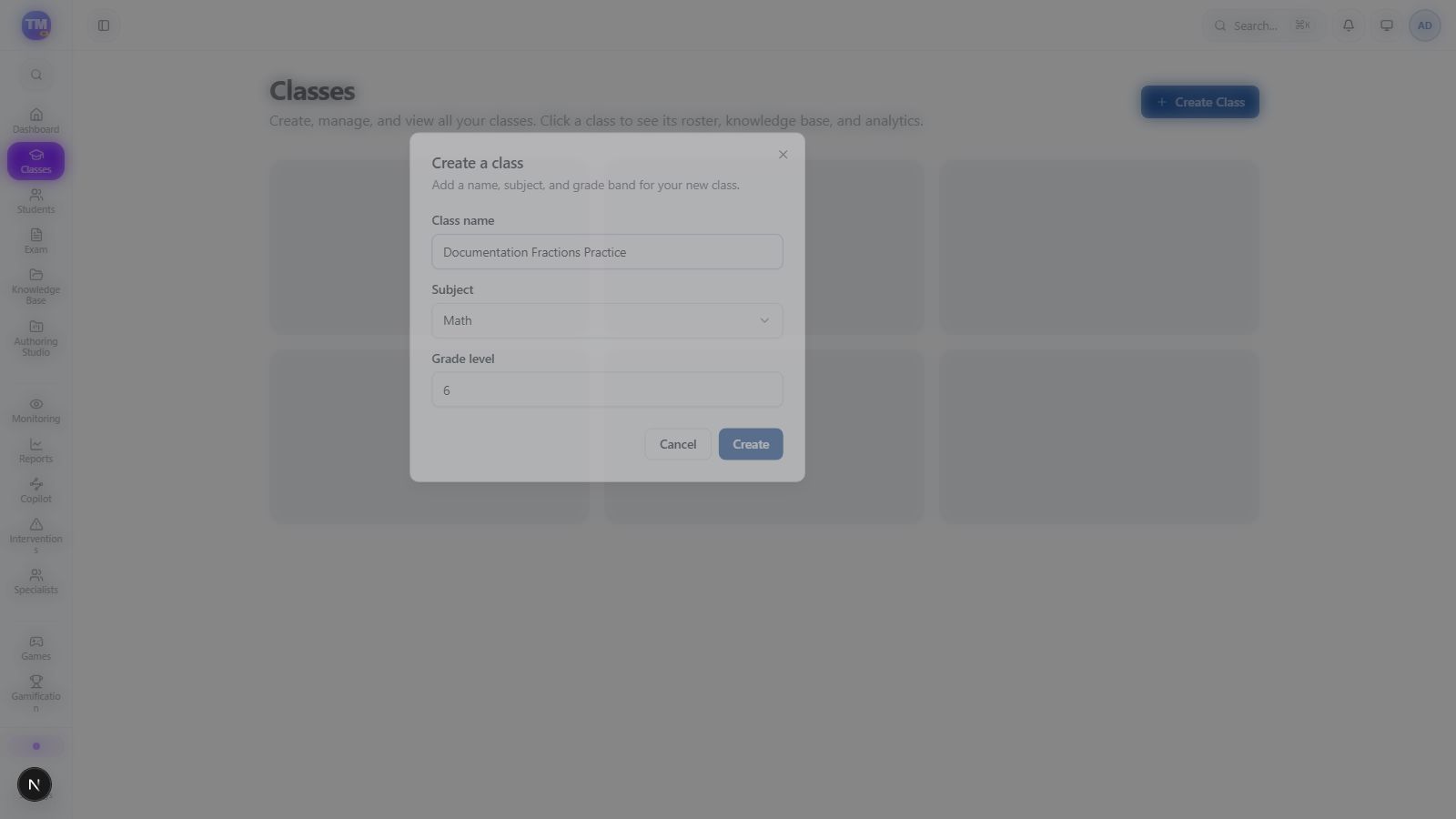
Class creation form with the example name, Math subject, and grade six.